
















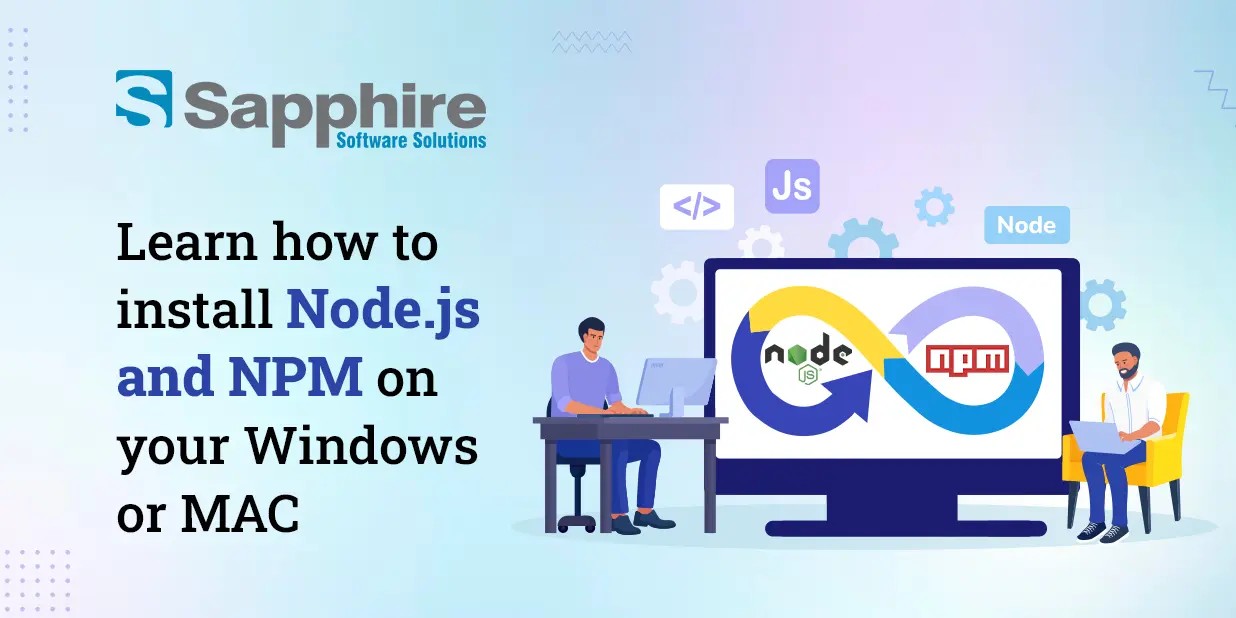
The robust JavaScript runtime Node.js has become necessary for developers working on server-side scripting, web applications, and APIs. It is an essential tool for contemporary programming due to its companion package manager, NPM (Node Package Manager), which makes it simple for developers to handle packages and requirements. If you have never used Node.js before, this tutorial will show you how to install it on a Mac and Windows computer.
Why install Node.js and NPM on Windows and Mac?
Installation, maintenance, and sharing of reusable code modules are handled via NPM. NPM has over one million libraries, frameworks, command-line tools, and utilities. These complete packages enable developers to speed up work, improve code quality, and use community-driven solutions to common programming problems.
This blog will help you with NPM installation and Node.js on Mac and Windows. With this guidance, all developers may rapidly set up their development environments and start constructing JavaScript apps. NPM allows Node.js beginners and experts to create powerful and innovative applications. We'll optimize NPM and Node.js!
Installing Node.js and NPM on Windows:
JavaScript developers who want to create web servers, command-line tools, and other apps must install Node.js and NPM on Windows. This blog will help you with installing NPM and set up your development environment with confidence and clarity.
Node.js provides an open-source JavaScript runtime environment for developers to execute code outside of a browser. This functionality allows developers to create server-side apps, APIs, and more. NPM, Node package manager installer, simplifies project dependencies, third-party library installation, and JavaScript community participation.
1. Check your system:
Check that your Windows machine matches the minimal requirements before installing. Windows 7 or later, a 1 GHz CPU, 512 MB of RAM, and 200 MB of disk space are typical requirements. For NPM installation and installing node package downloads, an internet connection is needed.
2. Select LTS:
Use your browser to visit https://nodejs.org to start the installation. On the webpage, you can download LTS and Current. Since LTS offers a stable development environment, most users pick it. Select LTS to download Node.js.
3. Launch Node.js:
To launch the Node.js Setup Wizard, double-click the .msi file after downloading. The Setup Wizard will show you how to customize Node.js and NPM to your liking during installation.
Accepting the licensing agreement will start the Setup Wizard. Read the agreement for details, then click "Next" to take it. Installing Node.js requires selecting a target folder. You can choose a different folder, although most people like the default. To continue, click "Next".
4. Customize the installation:
Customize the installation using the Setup Wizard after choosing the target location. It installs Node.js and NPM by default. Avoid changing these parameters unless you need to. Start using default options by clicking "Next."
Complete the modification and click "Install" to install. For Windows, the Setup Wizard will install Node.js and NPM, showing a progress indicator. The "Completed" message indicates that Node.js and NPM were installed.
5. After installation:
Node.js and NPM must be checked after installation. Open Command Prompt by typing "cmd" in the Start menu and inputting basic commands like node -v and npm -v to verify the installed versions of Node.js and NPM. Version numbers without mistakes indicate a successful installation.
You can choose to adjust NPM to your liking after reviewing the installation. Proxy settings, registry URLs, and the default package installation directory are examples. NPM's configuration settings may be set using npm config followed by the option.
6. Check for updates:
Keep Node.js and NPM updated by checking for updates and installing the newest versions. Downloading the newest Node.js from the official website and running the installer updates Node.js and NPM. In Command Prompt, npm install -g npm@latest updates NPM.
Use the Control Panel or the Node.js uninstaller to remove Node.js and NPM from Windows. This will remove all Node.js and NPM components from your system.
Overall, installing Node.js and NPM on Windows is easy and prepares for JavaScript development. By following this detailed tutorial, you can confidently set up your development environment and create robust and scalable Node.js and NPM apps. Node.js and NPM provide developers, from beginners to experts, the tools and environment they need to thrive. Coding bliss!
Checkout - Exploring Node.js Business App Development: Features, Advantages & Practices
Installing Node.js and NPM on Mac:
For developers using JavaScript to create various apps, installing Node.js and NPM on a Mac is crucial.
Developers can run JavaScript code outside of a browser using Node.js. Developers can create server-side apps, APIs, and more using this feature. NPM, the default package manager, complements Node.js. Project dependencies, third-party library installation, and JavaScript community participation are simplified with NPM.
1. Check your system:
Check that your Mac fulfills the minimal requirements before installing. Typically, this requires macOS 10.12 (Sierra) or later, an Intel CPU, 512 MB of RAM, and 200 MB of storage space. Downloading NPM installers and packages requires an internet connection.
Installation begins using Homebrew, a popular macOS package manager that simplifies program installation. Open Terminal on macOS and run the following command to install Homebrew:
- bash -c "URL -fsSL https://raw.githubusercontent.com/Homebrew/install/HEAD/install.sh"
- Follow the on-screen instructions to install Homebrew.
When Homebrew is installed, installing Node.js and NPM is easy. Terminal, execute this command:
2. Installation node:
Your Mac will automatically download and install NPM and Node.js versions using Homebrew.
Verify Node.js and NPM installation after installation. Run these commands in the Terminal:
3. NPM node:
Node.js and NPM versions are shown using these instructions. Installation is complete if both commands provide version numbers without problems.
After verification, you may choose to customize NPM. Setting proxy settings, registry URLs, and the default package installation path may be needed. An npm config command with the appropriate configuration option may configure several NPM configuration settings.
4. Updates:
Node.js and NPM must be updated to use the newest features, bug fixes, and security upgrades. NPM and Node.js updates on macOS are simple. Download and execute the newest Node.js installer from the official website. Terminal commands to update NPM include:
Use npm install -g npm@latest to install CSS.
The Terminal will remove Node.js and NPM from your Mac. First, find your Node.js installation directory. Then, go to the directory and execute the uninstall script.
You can also avail of Node.js development services from experts who will help you set up your macOS development environment and create solid and scalable Node.js and NPM apps. Regardless of your experience, you can succeed in JavaScript programming using Node.js and NPM. Coding bliss!
Conclusion:
Finally, developers starting in JavaScript-based application development must install NPM and Node.js on Windows and Mac.
On Windows, download the Node.js installer from the official website, run the Node.js Setup Wizard, accept the licensing agreement, choose the target folder, customize the installation if needed, and check the installation using Command Prompt.
Node.js and NPM provide developers with a robust environment for developing web servers and command-line tools. Continuously upgrading Node.js and NPM provides the newest features and security updates for a reliable and safe development environment. If you are looking for a Node.js development company in USA, contact us now! You can even hire Node.js developers to work dedicatedly on your project.